How to use Google AI Studio
How to Use Google AI Studio is a step-by-step beginner’s guide to creating, testing, and deploying AI prompts using Google’s powerful generative AI platform. This guide explains how to access Google AI Studio, choose Gemini models, write effective prompts, adjust parameters, and generate text, code, and creative content with ease. Learn real-world use cases, best practices, and tips to get accurate results—perfect for developers, marketers, students, and content creators who want to use Google AI Studio efficiently in 2025.
12/15/20255 min read
Getting Hands-On with Google AI Studio in Late 2025: My Step-by-Step Journey from Total Beginner to Building Real Stuff
Look, I’m not some AI wizard or full-time developer. I run a small online shop selling custom prints, and back in October 2025 I kept hearing everyone talk about Gemini this, Gemini that. One slow evening I typed “Google AI Studio” into my browser on a whim, signed in with my regular Gmail, and three hours later I had a working little web app that could take a customer description and spit out product ideas. No coding degree required. That hooked me.
Fast-forward to today, December 15, 2025, and Google AI Studio has become my secret weapon for everything from writing better product descriptions to prototyping quick tools for my business. It’s completely free to start (with generous limits), runs in your browser, and lets you play with Google’s latest Gemini models like 2.5 Flash, 2.5 Pro, and even preview versions.
If you’ve never touched it before, don’t worry—this is the exact walkthrough I wish I’d had when I started. I’ll cover signing up, basic chatting, serious prompt crafting, switching models, fine-tuning, generating code, building full apps in “Build” mode, grabbing API keys, and a bunch of real-world tips I’ve picked up along the way.
Step 1: Getting In (It Takes Literally 30 Seconds)
Head over to aistudio.google.com. If you’re already logged into any Google account (Gmail, Workspace, whatever), you’re basically done. Click “Sign in” if it asks, accept the terms, and boom—you’re staring at the main screen.
No credit card, no waiting list for basic use. If you’re on a Google Workspace account (like for work or school), your admin might need to enable it, but for personal accounts it’s wide open.
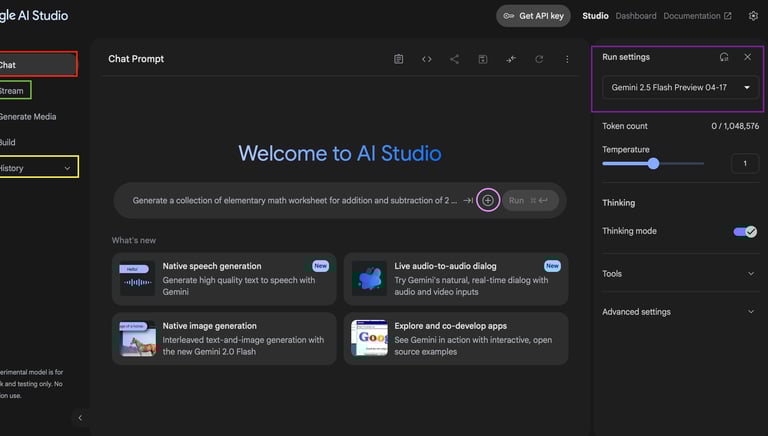
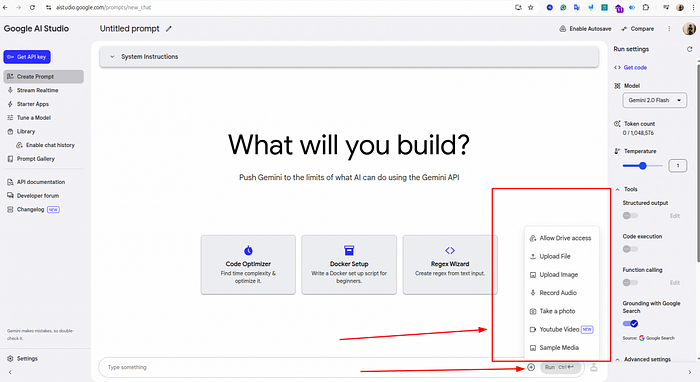
Once inside, you’ll see a big prompt box on the left, response area on the right, and a sidebar for your past projects (called “Galleries” now). That’s it.
Step 2: Your First Chat—Just Talk to It
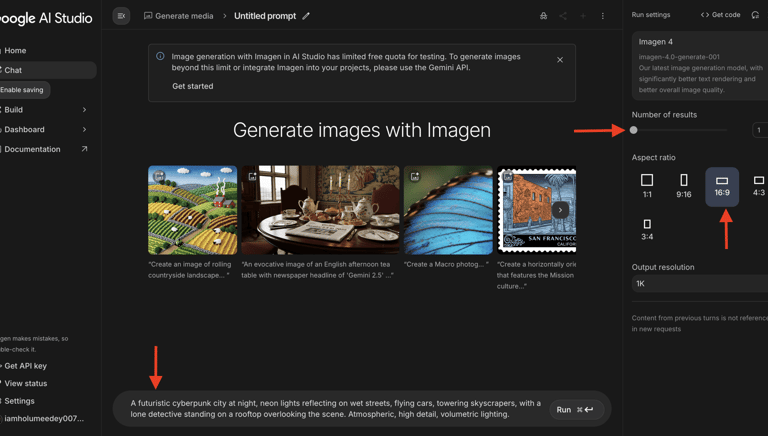
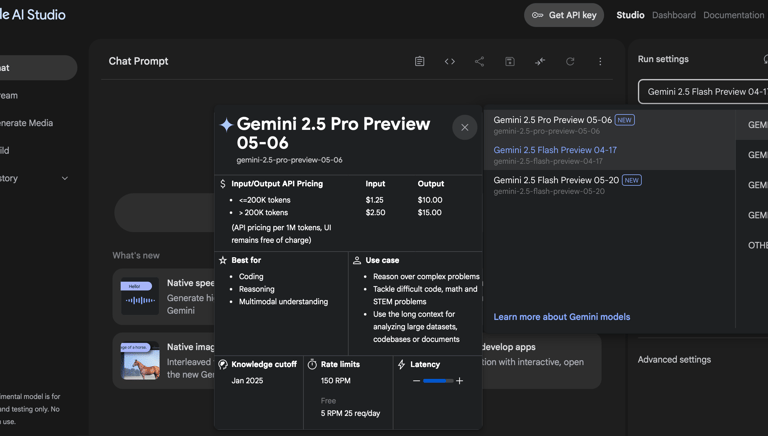
Pick a model from the dropdown at the top—start with “Gemini 2.5 Flash” because it’s lightning fast and cheap (free tier loves it).
Type something simple: “Explain quantum computing like I’m 12 years old.” Hit Enter.
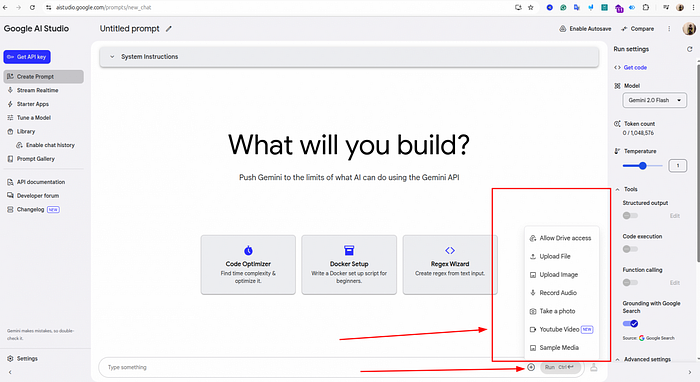
Watch it think for a second and reply. That’s Gemini in action. You can keep chatting in the same thread, upload images/PDFs/audio, or start fresh.
Step 3: Mastering Prompts (This Is Where the Magic Happens)
Good prompts = great results. Here’s what I do every time:
Be specific. Instead of “Write a story,” say “Write a 500-word sci-fi story about a time-traveling barista who accidentally prevents the invention of coffee, in the style of Douglas Adams.”
Use system instructions. Click the little “System” tab below the prompt box. This sets permanent behavior: “You are a sarcastic marketing expert who only speaks in bullet points.” It sticks for the whole session.
Structure output. Tell it “Respond ONLY in JSON with keys: title, summary, tags.”
Chain thoughts. Ask it to “Think step-by-step” for tough problems.
Pro tip: Save your best prompts as “Presets” (there’s a button for that now). I have one for product descriptions, one for email drafts, one for debugging code.
Step 4: Picking the Right Model
The model dropdown is your superpower.
Gemini 2.5 Flash: My daily driver. Super fast, cheap, handles most tasks brilliantly. Great for quick chats, summarization, simple code.
Gemini 2.5 Pro: When you need deeper reasoning, better creativity, or huge context (up to 1M tokens). Slower and hits rate limits faster on free tier, but worth it for complex stuff.
Preview/experimental models: Things like native audio, computer use, or new TTS versions pop up here first.
There’s even a “Compare” button to run the same prompt side-by-side on two models. Invaluable for deciding which one to use.
Step 5: Fine-Tuning Your Own Model
Want Gemini to sound exactly like your brand? Upload 50–100 examples of the kind of text you want, hit “Tune,” and let it train a custom version.
It’s free right now (as of December 2025), takes minutes to hours depending on data size, and you get a new model just for you. I tuned one on my past product listings—it now writes descriptions that convert way better.
Step 6: Generating Code and Full Apps (“Build” Mode)
This blew my mind the first time.
Switch to “Build” tab (top right). Describe what you want: “Make a single-page React app that lets users upload a photo of their pet and generates a funny caption with share buttons.”
Hit run. Gemini writes the entire app, shows a live preview, and lets you chat to refine it (“Make the background neon pink” or “Add dark mode toggle”).
You can annotate the preview by drawing on it—circle something and say “make this button bigger.” It updates instantly.
When happy, export the code (React or Angular) and deploy wherever.
Step 7: Grabbing an API Key for Real Projects
Ready to put Gemini in your own app or script?
Left sidebar → “Get API key.” Create one (free tier gives decent limits). Copy it.
Then use the official SDKs (Python, Node, etc.) or just curl. The “Get code” button in any prompt spits out ready-to-run examples in multiple languages.
I’ve hooked it into Google Sheets for auto-tagging orders and a simple Discord bot for customer support.
Everyday Tips I’ve Learned the Hard Way
Rate limits hit fast on Pro models—stick to Flash for casual use.
Upload PDFs directly for summarization; it handles huge docs now.
Use grounding (Google Search tool) for up-to-date info.
Dark mode exists—check settings.
Mobile works surprisingly well for quick tests.
Save everything to Gallery; you’ll reuse prompts constantly.
Temperature: 0.7–1.0 for creative, 0.2 or lower for factual.
If something feels off, regenerate or rephrase—small changes make big differences.
Why This Tool Changed How I Work
Before AI Studio, writing product copy took hours. Now it takes minutes, and the results are often better than my first drafts. Prototyping ideas that used to need a developer quote now take an afternoon.
It’s not perfect—hallucinations still happen, rate limits can frustrate—but for free, in-browser access to cutting-edge models? Nothing else comes close in 2025.
If you’re sitting there thinking “I’ll try it later,” just open a new tab right now and go to aistudio.google.com. Type your first silly prompt. I promise you’ll still be there an hour later, grinning at what you just built.





Contact
Questions? Reach out anytime, we're here.
Phone
hello@ailovetools.com
+1-555-123-4567
© 2025. www.ailovetools.com All rights reserved.